Discord Integration
What is Discord Integration?
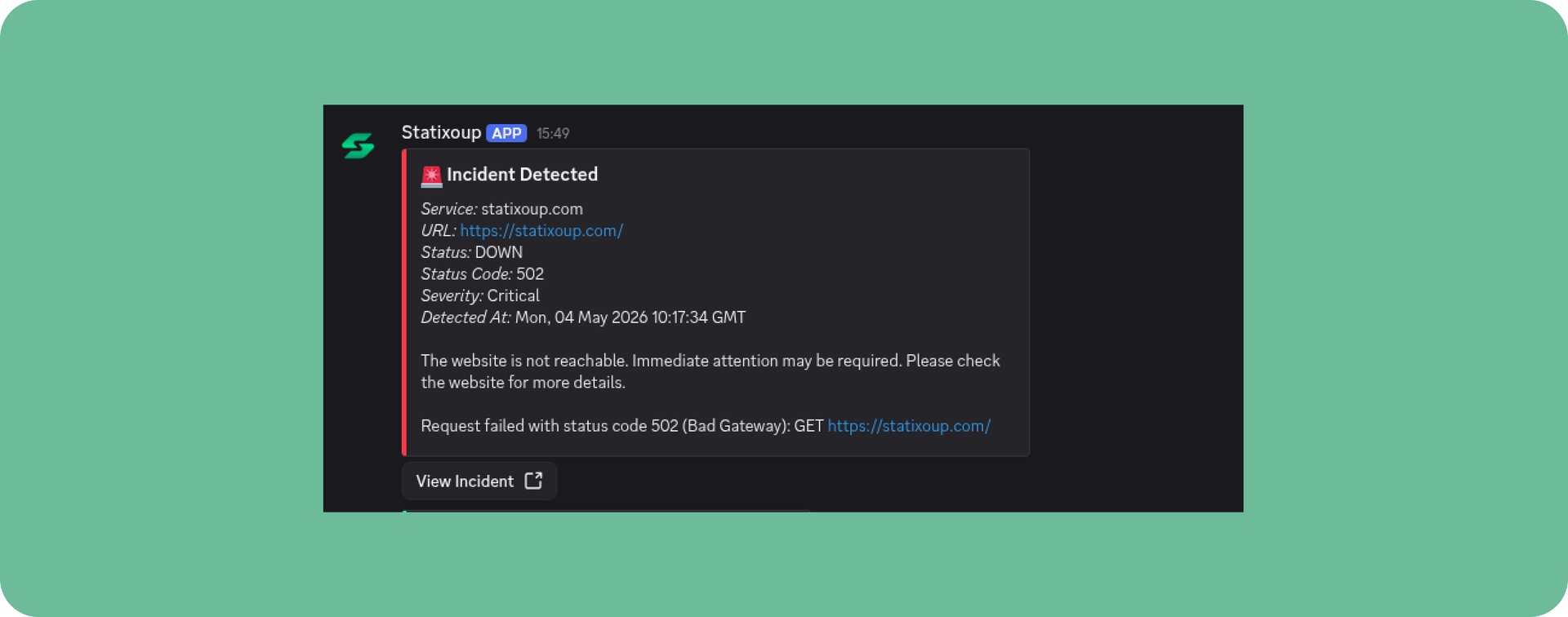
The Discord integration sends incident alerts and monitoring notifications directly into a Discord channel. This helps your team react quickly to downtime, SSL issues, and other service events without leaving Discord.
Alerts are delivered as rich messages containing monitor details, incident status, and direct links back to your uptime dashboard.
Why Use Discord?
- Fast team alerts: keep your engineering and ops channels informed in real time
- Centralized incident tracking: see monitoring updates alongside your team conversations
- Quick action: jump from a Discord alert to the incident details page instantly
- Flexible notifications: choose the channel that best matches your workflow
Setting Up Discord Integration
Open the Integrations page in your dashboard.
Locate the Discord integration card and click Configure.
Select the account and authorise that should receive uptime alerts.
Tip: use a dedicated alert account so notifications stay visible to your team.
Confirm the permissions and complete the connection.
After Setup
Once connected, you'll receive a confirmation message in the selected Discord channel. After that, notifications for new incidents, SSL warnings, and monitor alerts will be posted automatically.
If your monitor settings include Discord as a notification channel, every relevant alert will appear in the channel you selected.
Testing Your Discord Integration
Validate your integration with these steps:
- Go to Discord integration settings.
- Click Send test alert.
- Confirm the test message appears in Discord.
- Review the alert history in the integration settings to verify delivery.
Troubleshooting
Not Receiving Alerts?
- Confirm the Discord integration shows as connected.
- Verify the selected Discord channel still exists and has the required permissions.
- Send a test alert from the integration page again.
- Check that monitor notifications are enabled for Discord.
Alerts Are in the Wrong Channel?
- Reconfigure the integration and select the correct channel.
- Ensure the bot or webhook has access to the target channel.
Want to Disconnect?
Visit Integrations and choose Disconnect next to Discord.
Need help? If you're still having issues with Discord integration, contact our support team at hello@statixoup.com with details about your setup.