Slack Integration
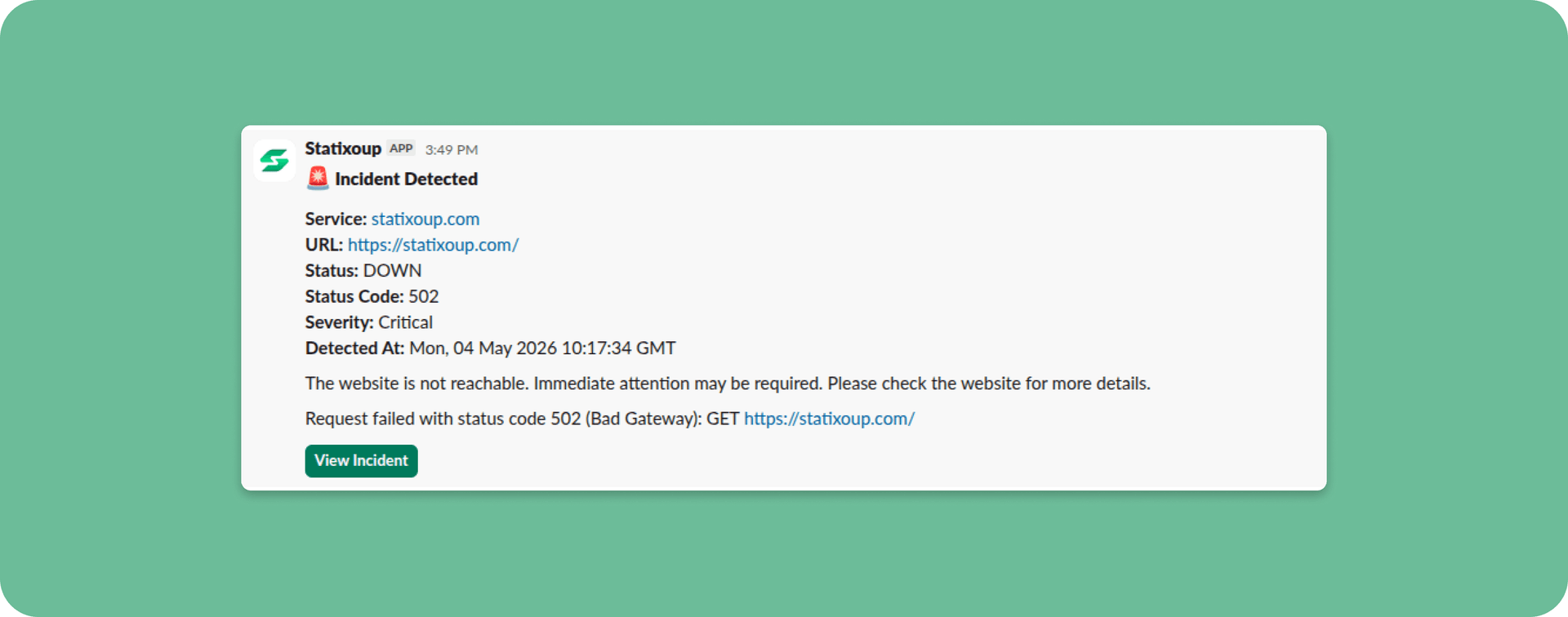
What is Slack Integration?
The Slack integration allows you to receive real-time incident alerts and notifications directly in your Slack workspace. This ensures your team stays informed about website downtime, SSL certificate issues, and other monitoring events without leaving Slack.
Each alert includes detailed information about the incident, affected monitor, and provides quick action buttons to view more details in your uptime dashboard.
Benefits of Slack Integration
- Real-time notifications: Get instant alerts when incidents occur
- Team collaboration: Start threads under alerts to coordinate responses
- Quick access: Direct links to incident details and your dashboard
- Customizable channels: Choose which Slack channel receives notifications
- Rich message formatting: Color-coded alerts with clear status indicators
Setting Up Slack Integration
Navigate to your Integrations page in the dashboard.
Find the Slack integration card and click Configure.
You'll be redirected to Slack's authorization page.
Select the channel where you want incident alerts to be posted.
Note: Choose a channel your team actively monitors for best results.
Click Allow to grant the necessary permissions.
What Happens After Setup
Once connected, you'll receive a welcome message in your selected Slack channel confirming the integration is active.
Going forward, all new incidents, SSL certificate expirations, and monitor alerts will automatically post to this channel with detailed information and action buttons.
Testing Your Integration
After setup, you can verify everything is working correctly:
Go to your Slack integration settings.
Click Send test alert to trigger a sample notification.
Check your Slack channel for the test message.
Review the message history in the integration settings to see all past alerts.
Troubleshooting
Not Receiving Alerts?
- Verify the Slack integration is properly configured and shows as "Connected"
- Check that your selected channel exists and you have posting permissions
- Send a test alert from the integration settings
- Review your monitor's alert settings to ensure Slack notifications are enabled
Alerts Going to Wrong Channel?
- Reconfigure the integration and select a different channel
- Ensure you have the correct permissions in the target channel
Need to Disconnect?
Visit your Integrations page and click Disconnect next to the Slack integration.
Need help? If you're still having issues with Slack integration, contact our support team at hello@statixoup.com with details about your setup.